If you use Xcode on multiple Macs, Configmesh can keep your settings consistent with encrypted sync.
What gets synced
The Xcode bundle covers:
- Key bindings — your custom keyboard shortcuts
- Code snippets — reusable code completions
- Font and color themes — editor appearance
- Templates — custom file and project templates
- Debugger settings — breakpoint actions and configurations
- Search scopes — saved search configurations
- Xcode preferences — general app preferences (
com.apple.dt.Xcode.plist) - Plug-ins — shared Xcode plug-ins
All of these live under ~/Library/:
~/Library/
├── Application Support/Developer/Shared/Xcode/
│   └── Plug-ins/
├── Developer/Xcode/
│   ├── Templates/
│   └── UserData/
│       ├── CodeSnippets/
│       ├── Debugger/
│       ├── FontAndColorThemes/
│       ├── KeyBindings/
│       ├── SearchScopes.xcsclist
│       └── xcdebugger/
└── Preferences/
    └── com.apple.dt.Xcode.plist
Step 1: Download Configmesh for macOS
Install the latest macOS build:
Sign in after installing.
Step 2: Pick One Setup Path
You can either use the existing Xcode bundle, or create your own.
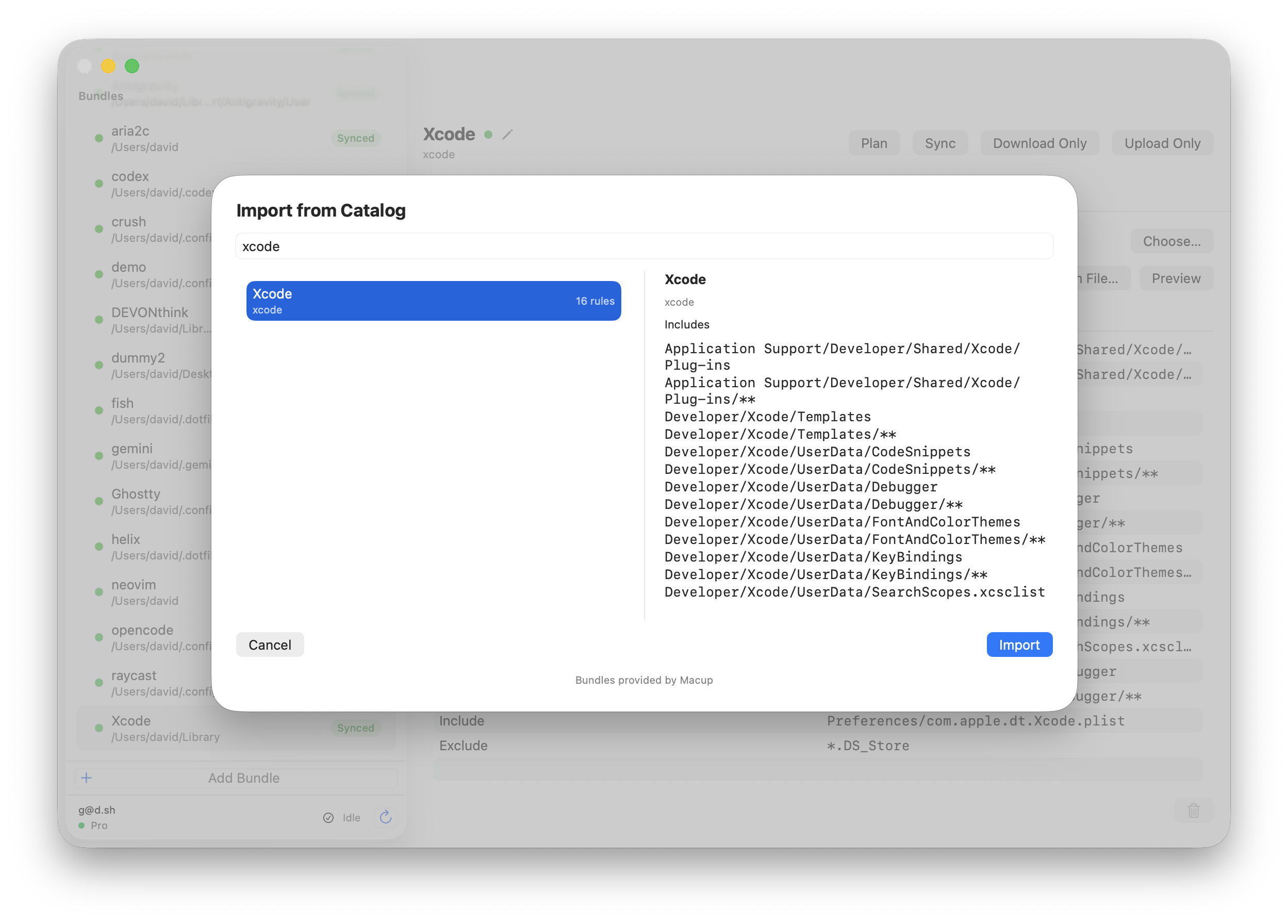
Option A: Import the existing Xcode bundle
- Open Configmesh.
- Go to bundles.
- Import/select the
Xcodebundle.
Option B: Create a new Xcode bundle manually
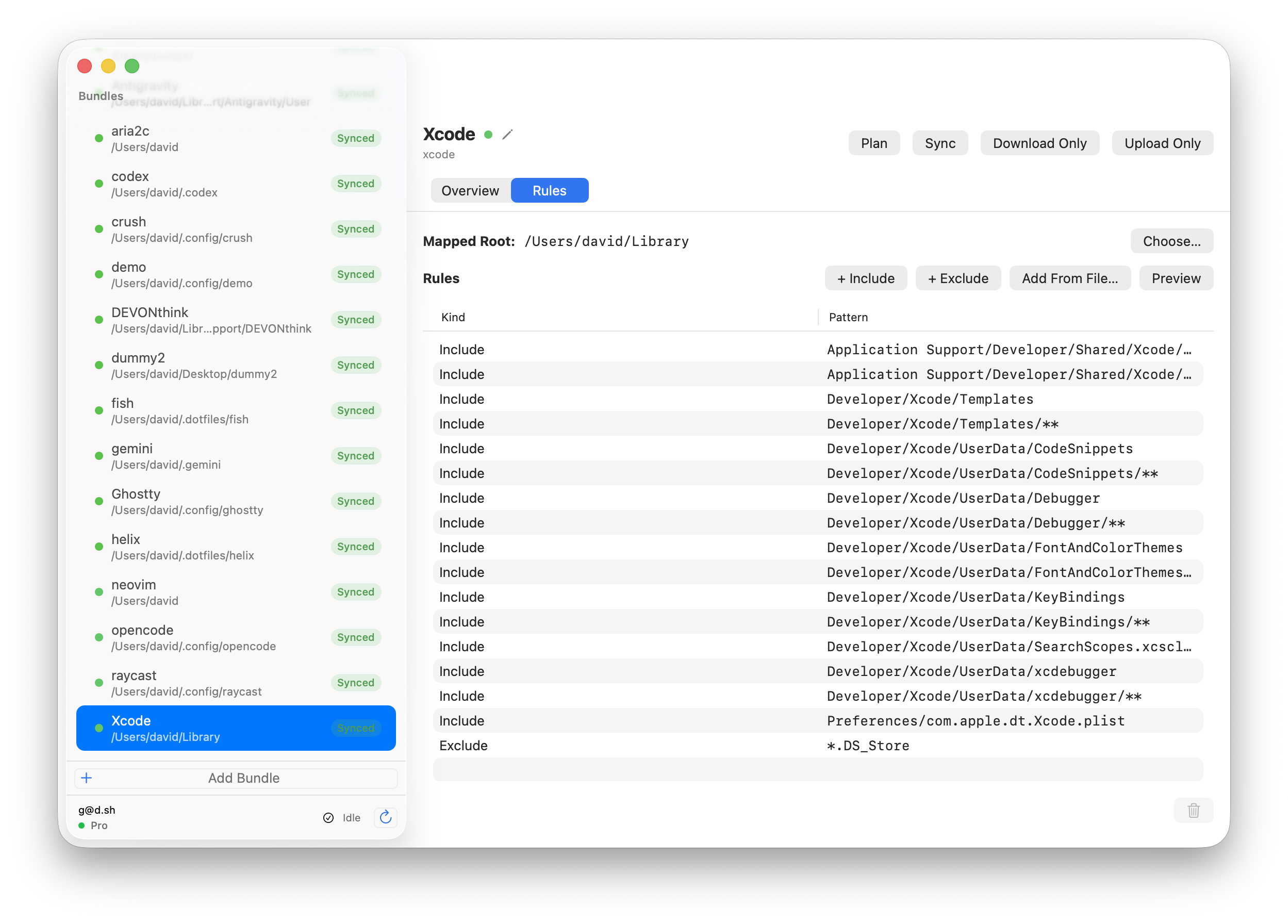
Create a new bundle and set the root to:
Library/
Then add these include rules:
Application Support/Developer/Shared/Xcode/Plug-insApplication Support/Developer/Shared/Xcode/Plug-ins/**Developer/Xcode/TemplatesDeveloper/Xcode/Templates/**Developer/Xcode/UserData/CodeSnippetsDeveloper/Xcode/UserData/CodeSnippets/**Developer/Xcode/UserData/DebuggerDeveloper/Xcode/UserData/Debugger/**Developer/Xcode/UserData/FontAndColorThemesDeveloper/Xcode/UserData/FontAndColorThemes/**Developer/Xcode/UserData/KeyBindingsDeveloper/Xcode/UserData/KeyBindings/**Developer/Xcode/UserData/SearchScopes.xcsclistDeveloper/Xcode/UserData/xcdebuggerDeveloper/Xcode/UserData/xcdebugger/**Preferences/com.apple.dt.Xcode.plist
These paths cover Xcode's user data, preferences, and plug-ins.
Step 3: Hit Sync
Click Sync on your first Mac, then run Sync on your other Mac(s) with the same account and encryption passphrase.