If you have more than one Mac, you already know the problem: configs drift.
Dotfiles, app settings, ~/Library bits, and the one file you always forget to copy over.
ConfigMesh is built to make that boring again: pick what to sync, encrypt it locally, and keep it consistent across machines.
Watch The Demo
Step 1: Install The App
Download the latest macOS build from the homepage and install it like any other app.
- Direct link:
https://releases.configmesh.app/macos/latest/Configmesh.dmg
Step 2: Log In
Open ConfigMesh and sign in. This connects your device to your account so it can sync encrypted data.
Step 3: Choose Your Encryption Key
ConfigMesh uses end-to-end encryption. Your key never leaves your machine.
Practical advice:
- Use a long passphrase you can re-enter on a second Mac.
- Store it in your password manager.
- If you lose it, you lose access to the encrypted data. There is no recovery.
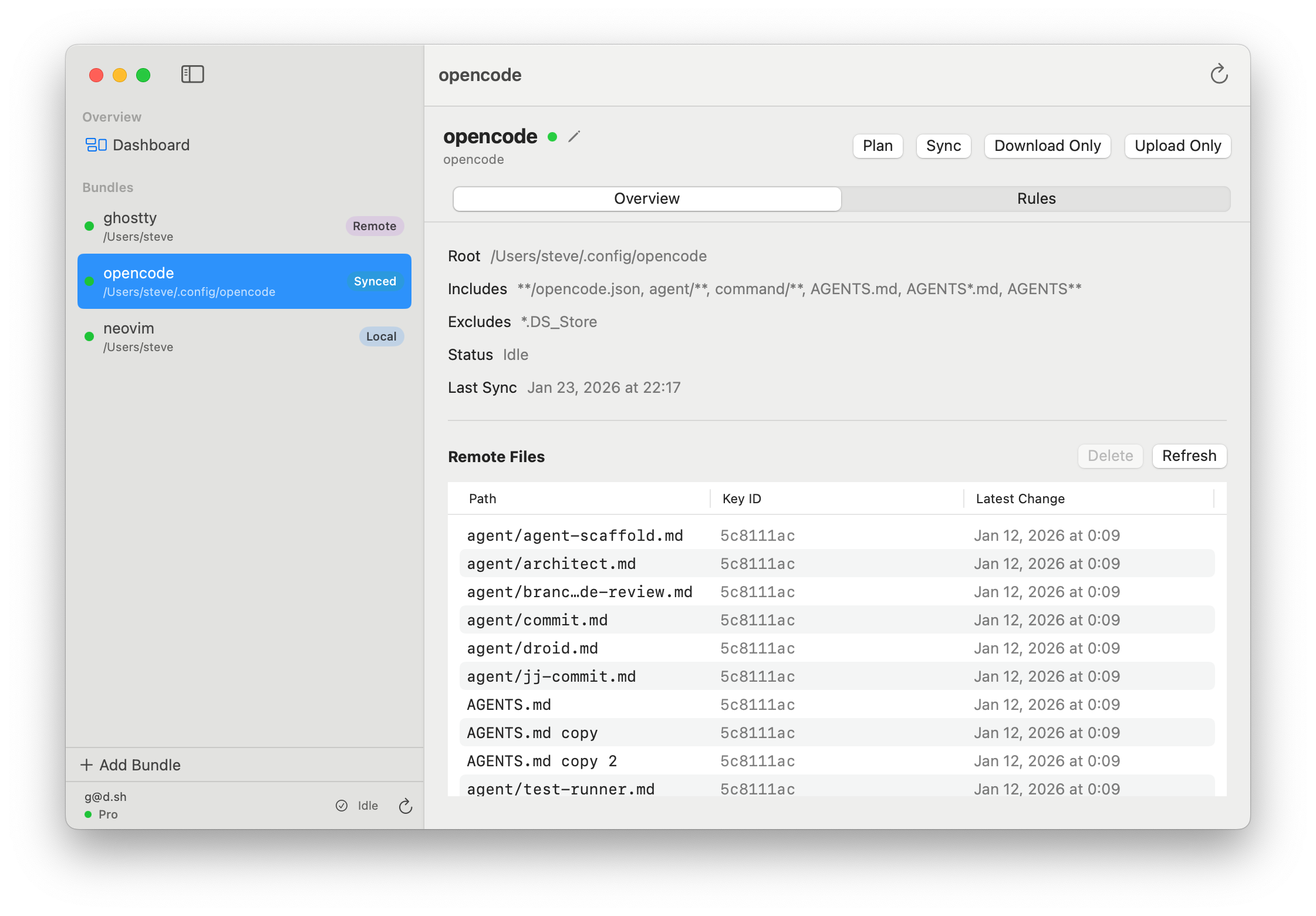
Step 4: Create Your First Bundle (Start Small)
Don’t try to sync your entire home directory on day 1. Pick one thing you care about and can verify quickly.
Planning vs Syncing
ConfigMesh has two related actions:
- Plan: a dry run. It tells you what ConfigMesh would upload/download/delete, without changing anything.
- Sync: applies that plan. This is the step that actually moves encrypted data.
If you are unsure about your rules, run Plan until the output matches your intent, then Sync.
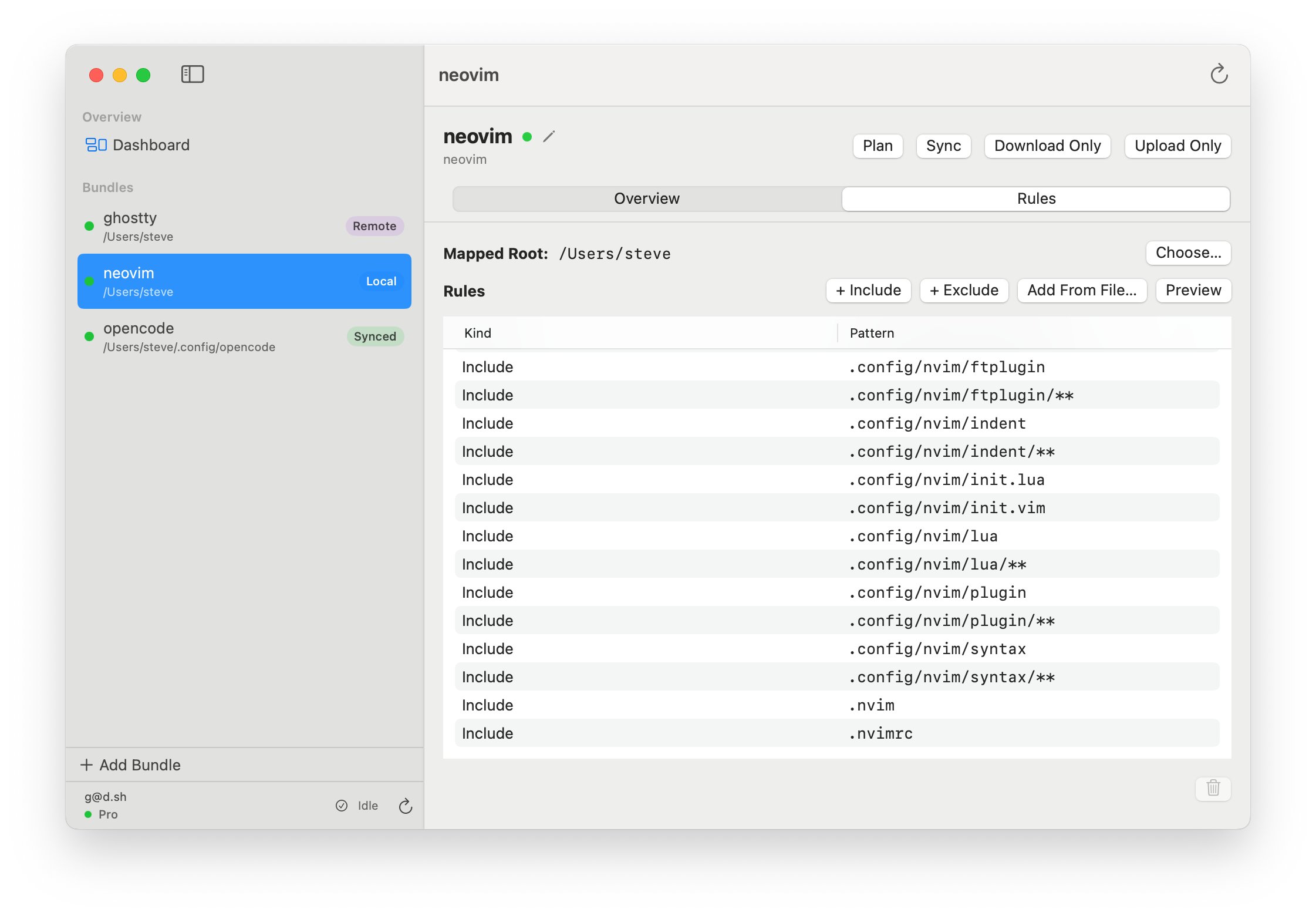
Rules (What Gets Included)
Rules are glob patterns that match paths inside your bundle root. A few examples:
*.yaml: match YAML files in the bundle root.skills/**: match everything underskills/recursively.config.yaml: match a single file namedconfig.yaml.**/*: match everything recursively (not recommended unless you heavily exclude noise).
Good first bundles:
~/.config/ghostty(terminal config)~/.config/fishor~/.zshrc~/.gitconfig(if you keep it clean)~/.ssh/config(not keys)
Avoid at first:
- Browser profiles
- Large caches
- Anything that is machine-specific by design
Step 5: Run A Sync And Verify
After you create a bundle, run a sync. Then verify:
- The expected files show up in the dashboard.
- You can open a file and see contents after decrypt.
- You can roll back using history if you make a change.
The first sync should feel boring. If it isn’t, stop and narrow the bundle until it is.
Step 6: Add A Second Mac
On your second Mac:
- Install ConfigMesh
- Log in
- Enter the same encryption key
- Pull/sync and confirm the same bundle appears
Once you see the same config on both machines, expand the bundle list gradually.
Common “Why Is This Not Working?” Checks
- Decryption fails: wrong key, or the key changed between machines.
- Files missing: the bundle includes/excludes don’t match what you think they do.
- Too much noise: you’re syncing generated files. Add excludes and keep only source-of-truth config.
Set Up The CLI
Want to run ConfigMesh on a server or automate workflows? Follow: How to set up the ConfigMesh CLI.