Since version 1.1, ConfigMesh supports using your own Dropbox account as a storage backend instead of the built-in ConfigMesh cloud storage. This gives you full control over where your encrypted data lives.
What Changes With Dropbox Storage
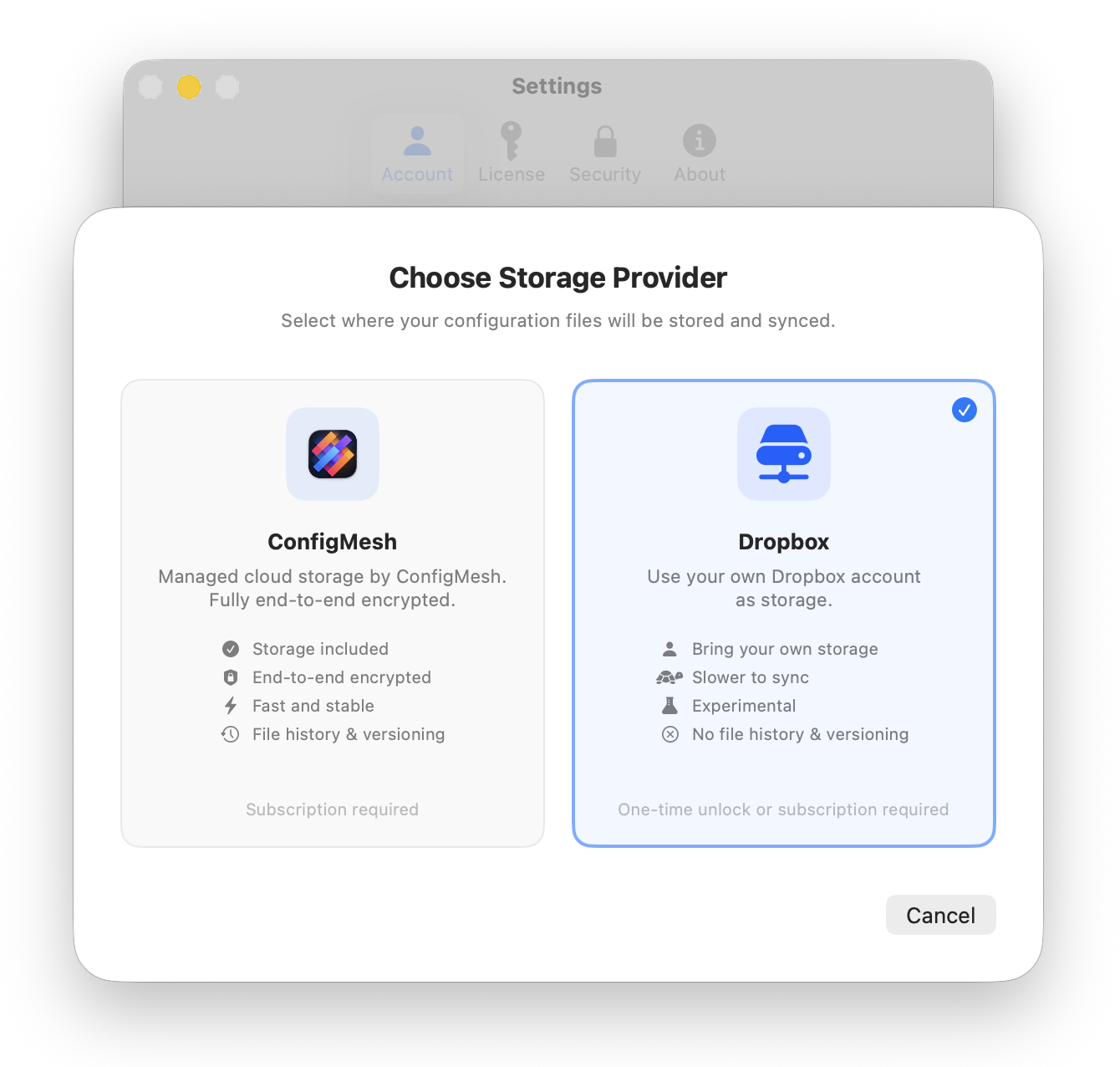
Your files are still fully end-to-end encrypted — the encryption key never leaves your machine, regardless of which storage backend you use. The only difference is where the encrypted blobs are stored.
There are a few trade-offs to be aware of:
- ❌ No ConfigMesh file history. Version history is a ConfigMesh cloud feature. With Dropbox, you can use Dropbox's own version history if your plan supports it.
- ❌ Slower sync. Dropbox sync goes through Dropbox's API, which can be slower than ConfigMesh's built-in storage.
- ❌ No web dashboard. The ConfigMesh web dashboard only works with ConfigMesh cloud storage.
Dropbox storage requires either a one-time unlock or an active monthly/annual subscription. You can manage your plan on the billing page.
If those trade-offs are fine for your workflow, Dropbox storage is a great option — especially if you already pay for Dropbox and want to keep costs down with a one-time purchase.
Step 1: Open Settings
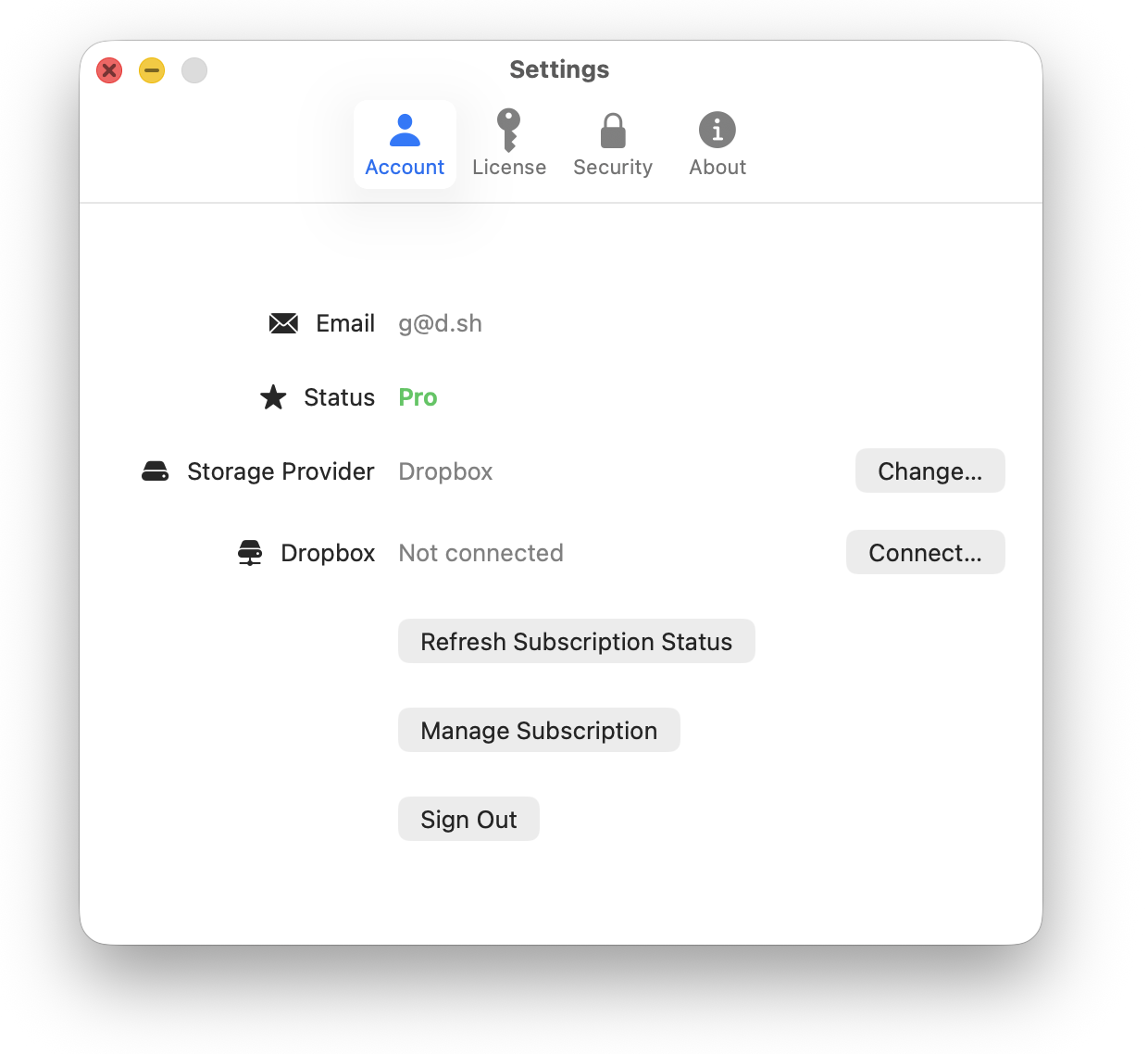
Open ConfigMesh and navigate to Settings.
Step 2: Change Storage Provider
Find the Storage Provider section and click Change....
Step 3: Select Dropbox
In the popup that appears, click Dropbox.
Step 4: Connect Dropbox
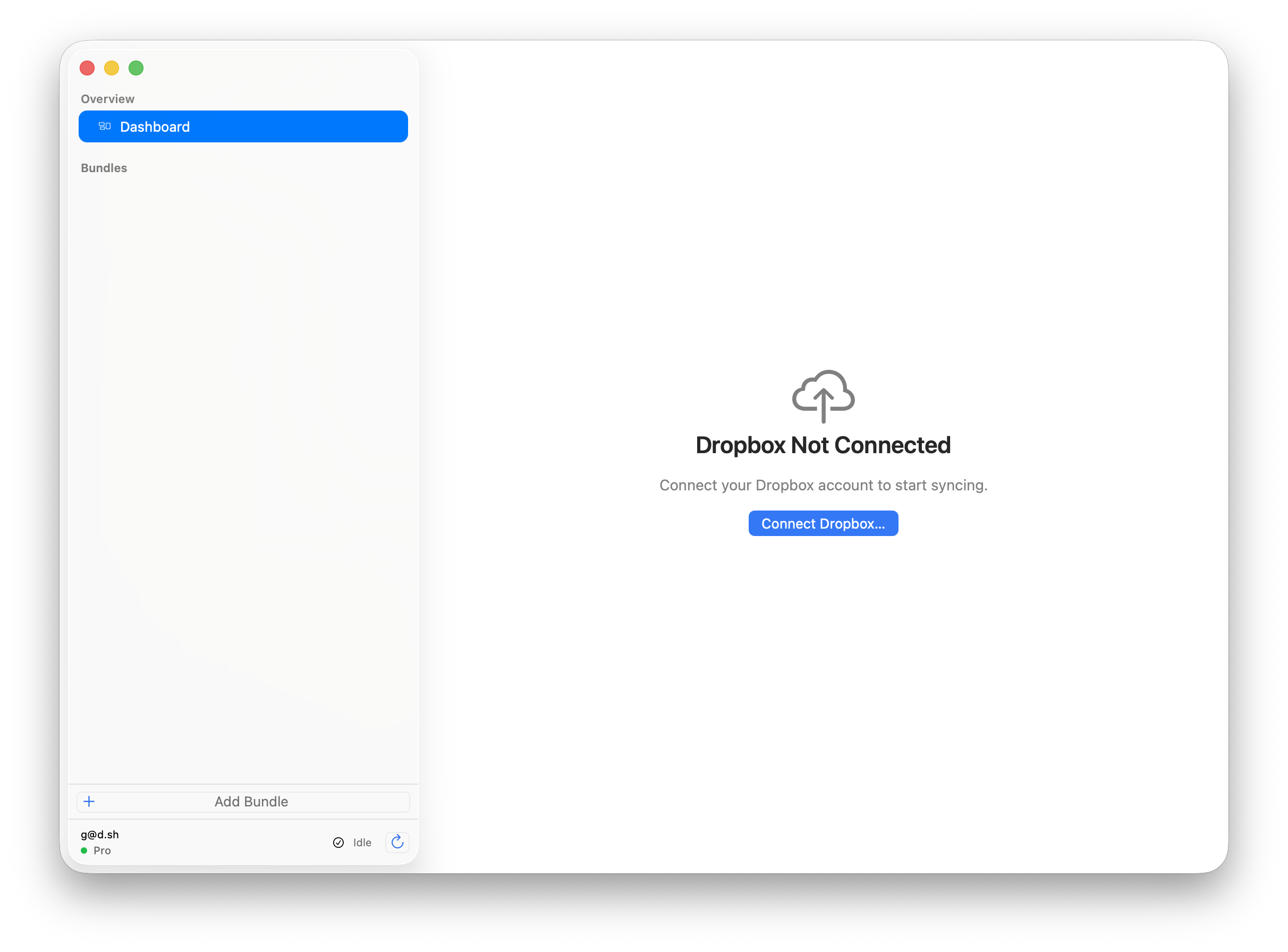
Back on the main screen, you'll see a Dropbox Not Connected prompt. Click Connect Dropbox... and follow the instructions in your browser to authorize ConfigMesh.
ConfigMesh only requests access to its own app folder — it cannot read or modify your other Dropbox files.
Step 5: Sync
That's it. Your bundles will now sync to Dropbox instead of ConfigMesh cloud storage. Existing bundles will be re-uploaded to Dropbox on the next sync.
On your other Macs, switch them to Dropbox storage as well and use the same Dropbox account to keep everything in sync.