If you use Antigravity on multiple Macs, Configmesh can keep your settings consistent with encrypted sync.
Step 1: Download Configmesh for macOS
Install the latest macOS build:
Sign in after installing.
Step 2: Pick One Setup Path
You can either use the existing Antigravity bundle, or create your own.
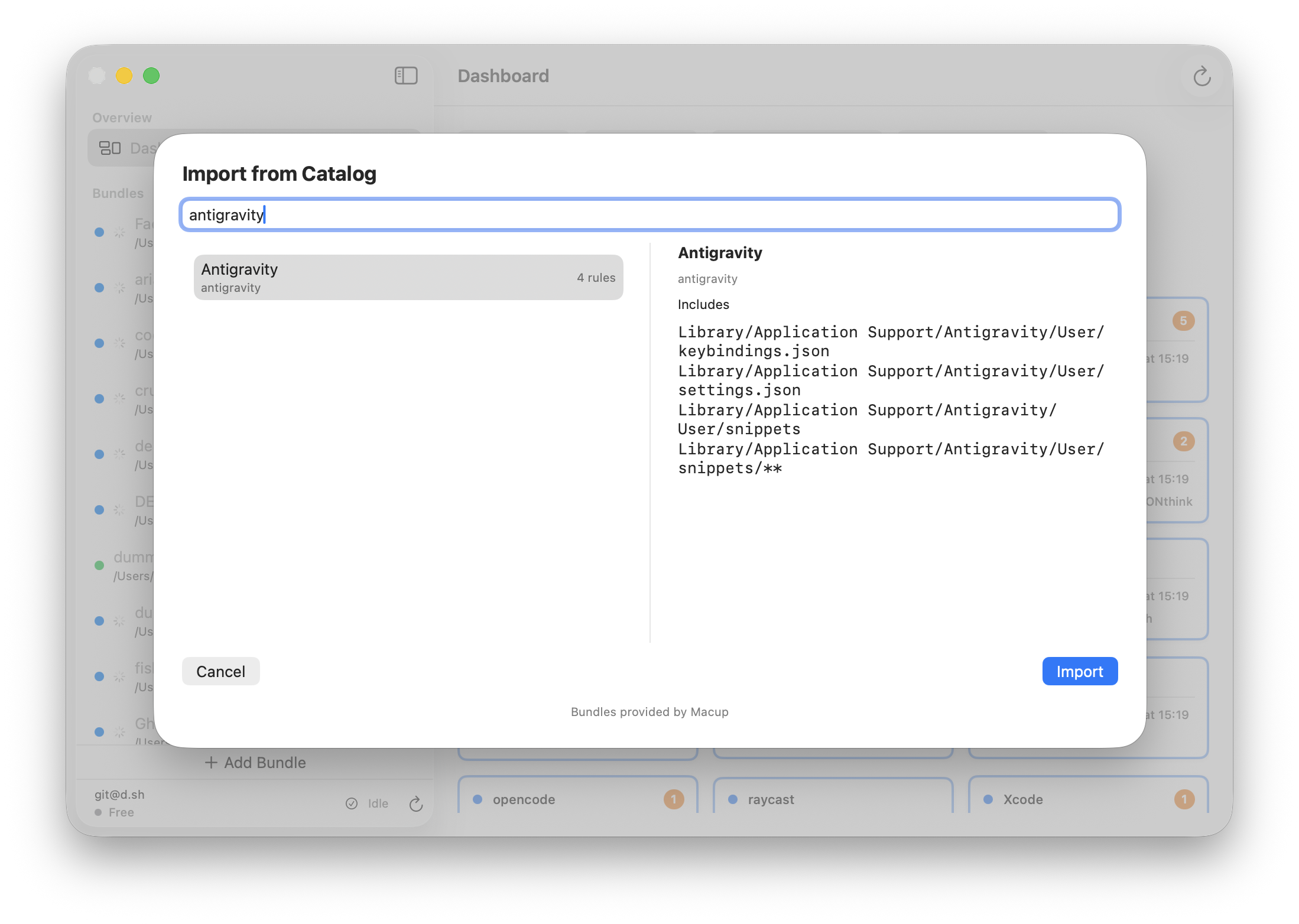
Option A: Import the existing Antigravity bundle
- Open Configmesh.
- Go to bundles.
- Import/select the
Antigravitybundle.
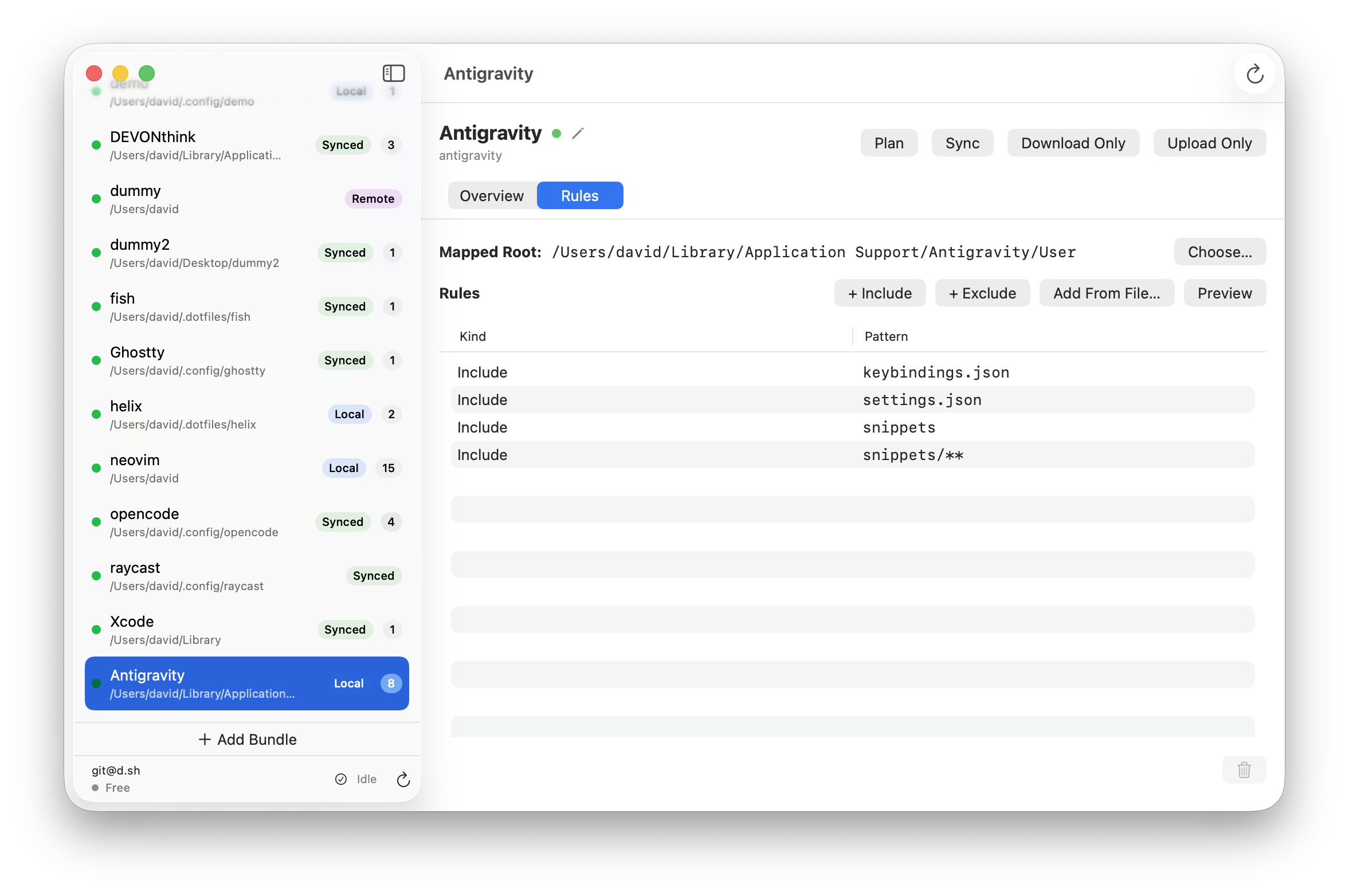
Option B: Create a new Antigravity bundle manually
Create a new bundle and set the root to:
Library/Application Support/Antigravity/User/
Then add these include rules:
keybindings.jsonsettings.jsonsnippetssnippets/**
These paths cover the Antigravity settings and snippet files.
Step 3: Hit Sync
Click Sync on your first Mac, then run Sync on your other Mac(s) with the same account and encryption passphrase.